FlashBoards Interface Guide
Master every panel, overlay, and control
FlashBoards combines an infinite canvas, contextual overlays, and dual AI pipelines into a single workspace. This visual guide walks through every interface element so you can navigate the extension confidently and build faster creative loops.
Workspace Layout
The FlashBoards workspace centers on an infinite canvas surrounded by contextual controls. The top bar provides help, undo/redo, and zoom. The left sidebar offers quick actions. The bottom toolbar manages boards and opens modals. When AI is enabled, the bottom stack displays Input Checklist and Generation Panel side by side.
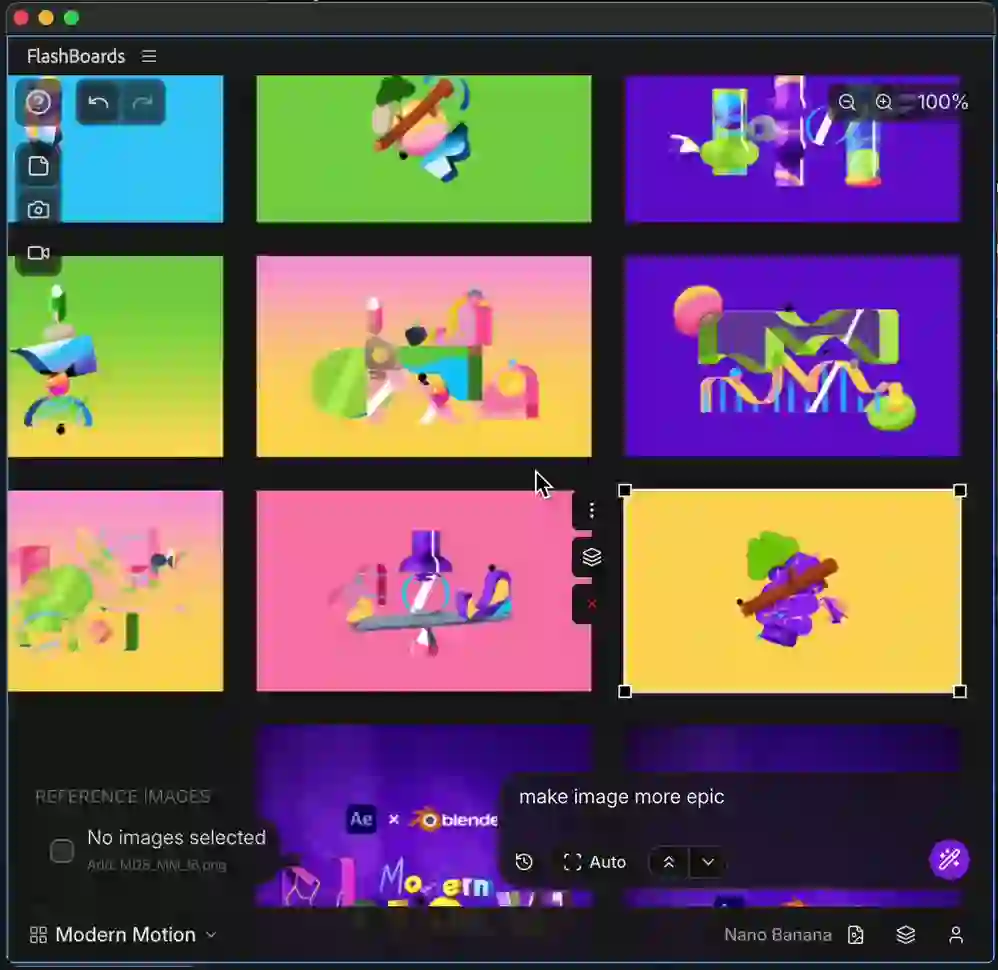
Main workspace layout with all primary zones
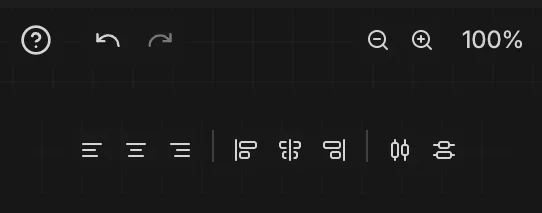
Top Controls Bar
Help documentation, undo/redo, zoom tools, and alignment buttons (multi-selection). Zoom percentage updates in real-time.
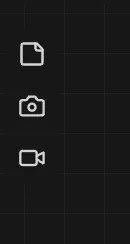
Left Sidebar Actions
Text Note, Screenshot (Alt: JPEG), Record Composition (Alt: high quality). All with automatic FFmpeg conversion.
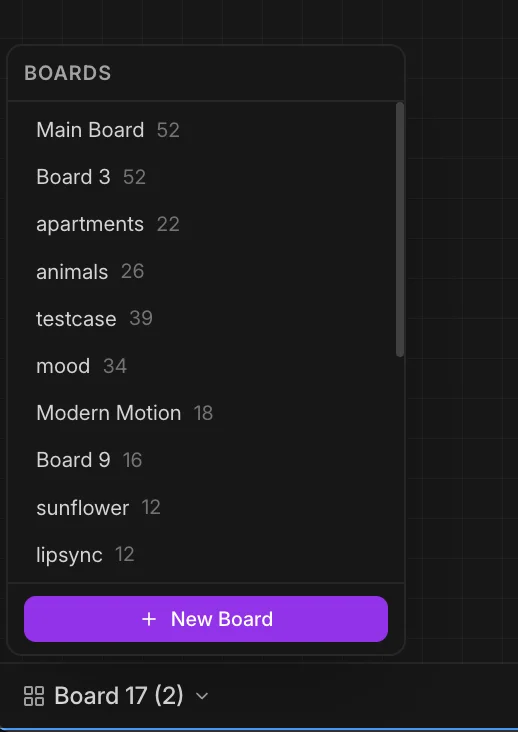
Bottom Toolbar
Boards dropdown (create, rename, duplicate, delete), Files (Media Browser), Settings, Models (when AI enabled).
Canvas Navigation
The infinite canvas supports pan and zoom gestures. Pan by dragging empty space (or Alt+drag to pan without selecting). Scroll to zoom in/out. Keyboard shortcuts Ctrl+Z / Ctrl+Shift+Z provide undo/redo.
Pan & Zoom Controls
- • Pan: Drag empty space anywhere on canvas
- • Pan (no selection): Alt+drag to avoid selecting items
- • Zoom: Scroll up/down without modifiers
- • Zoom buttons: Click + / - in top bar
- • Undo/Redo: Ctrl+Z / Ctrl+Shift+Z or top bar buttons
If shortcuts do not work, make sure nothing is selected in the After Effects UI. AE sometimes catches shortcuts before the extension sees them.
Grid & Snap to Grid
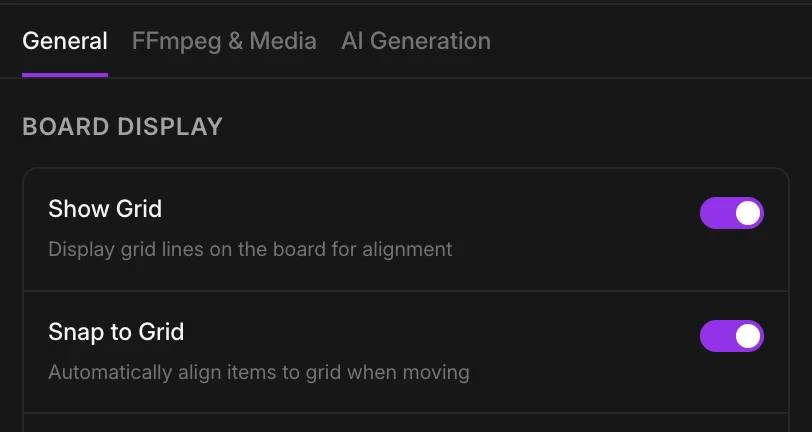
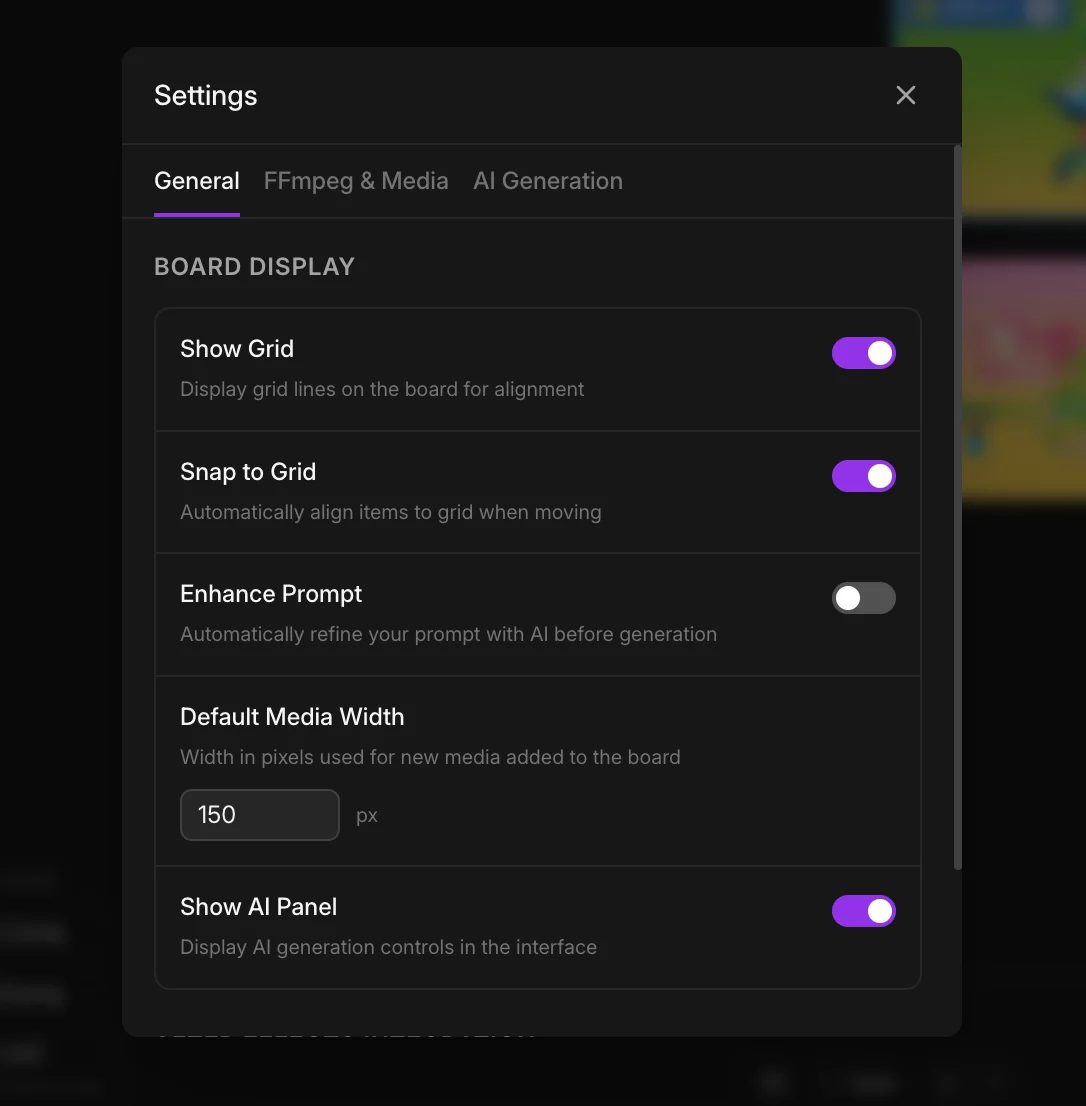
Enable Show Grid and Snap to Grid in Settings → General. The grid helps align media items visually, and snap ensures precise positioning when dragging items.
Selection & Overlays
FlashBoards uses overlays to provide feedback without blocking your workflow. Selection overlays, AI badges, progress tracking, and alignment tools appear contextually based on what you are doing.
Item Action Overlay
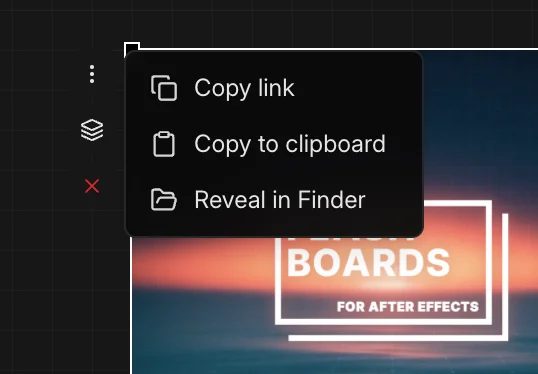
When you select a single media item, the Item Action Overlay appears on the left edge with quick buttons: Copy to Clipboard (images only), Copy Link, Reveal (in Finder/Explorer), Export to Composition, and Delete.
- • Copy to Clipboard (images only) — copies image data directly to system clipboard for pasting into other apps
- • Export modifiers: Alt for fit mode (scale to comp), Shift to create new comp
- • Reveal shows file location on disk or opens web page for URL-based media
- • Copy Link grabs the path or URL for pasting elsewhere
Multi-Selection Overlay
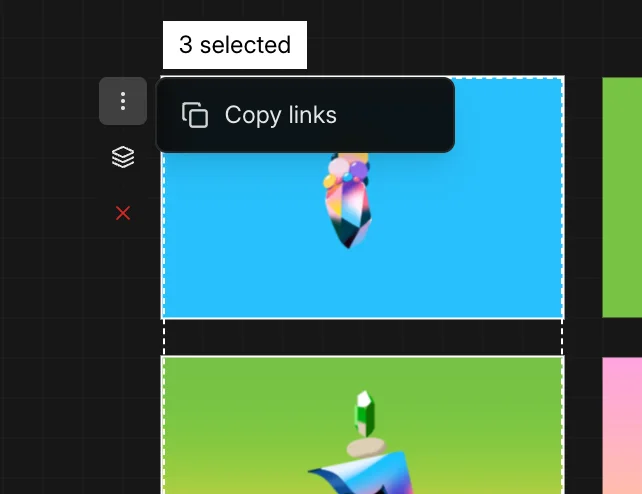
Select multiple items by Shift+clicking or Shift+drag on empty space. A dashed frame wraps the group. The MultiSelection Overlay provides Copy Links, Export All, Delete All. Alignment/distribution tools appear at the top center.
AI Role Badges
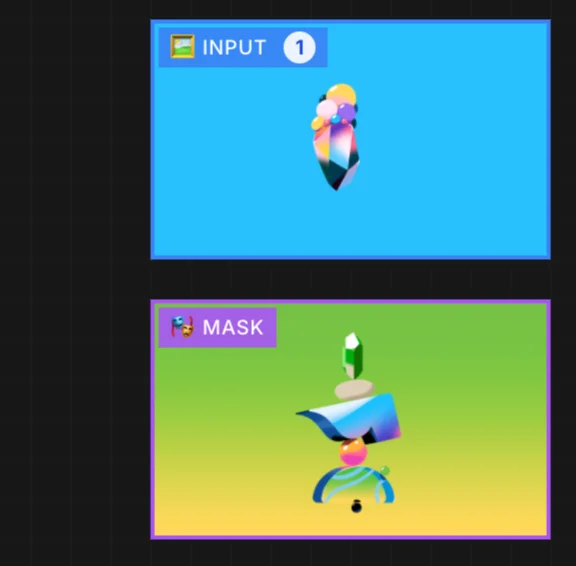
When you assign media to AI workflows, numbered badges (1, 2, 3...) appear directly on items showing their Input or Mask role. Press I to assign Input, M for Mask, C to clear all roles.
Generation Progress Overlay
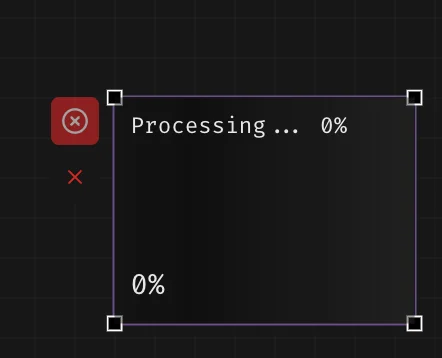
During AI generation, a progress overlay appears on placeholders showing stage, percentage, status chips, and a cancel button (X circle in top-left corner). Upscale badges (2x/4x in green) appear on finished upscaled media.
Fullscreen Preview
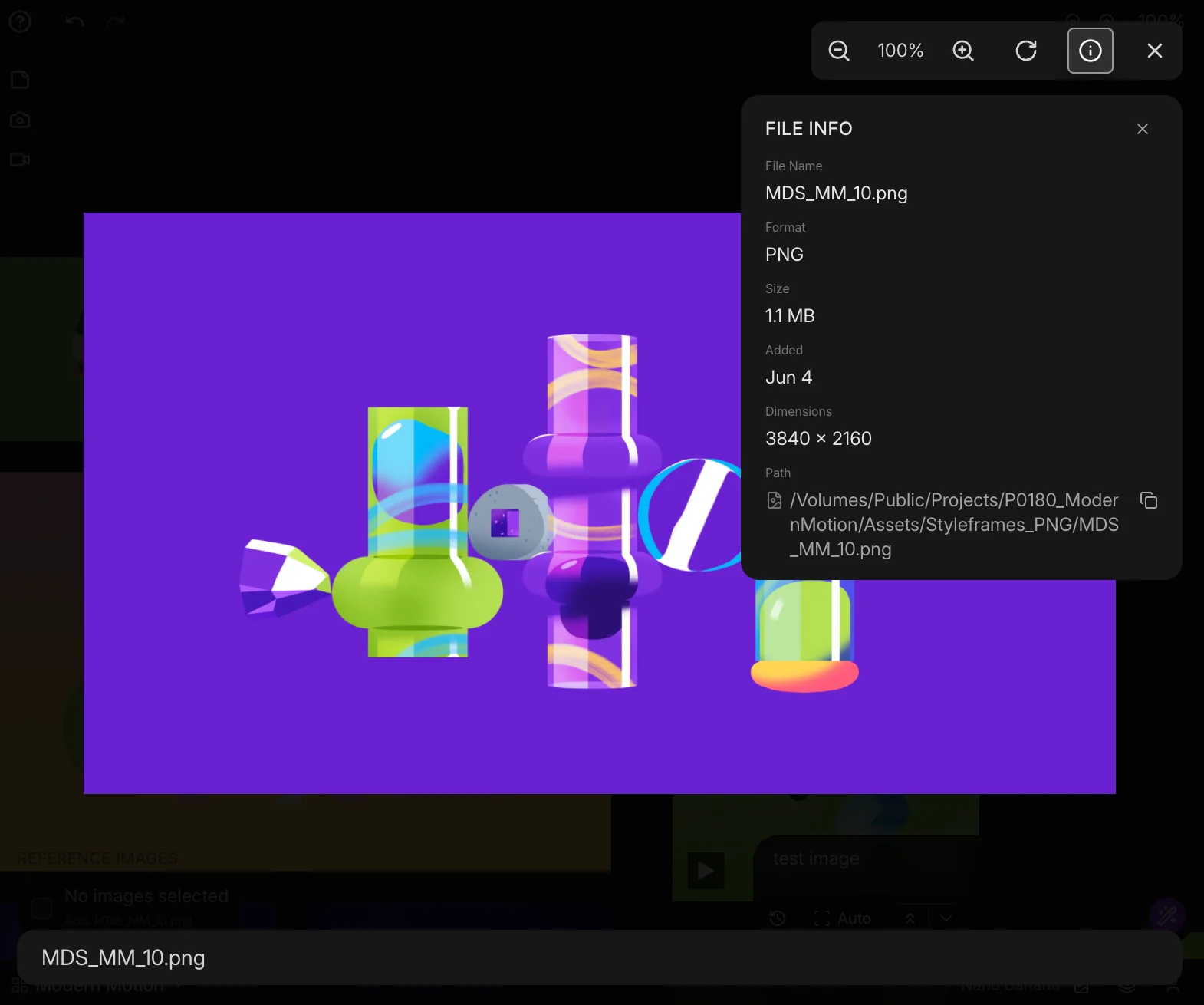
Double-click any media item to view it fullscreen. Zoom in/out, rotate, and inspect metadata (prompt, model name, dimensions). Press Escape to close and return to the workspace.
Media Browser
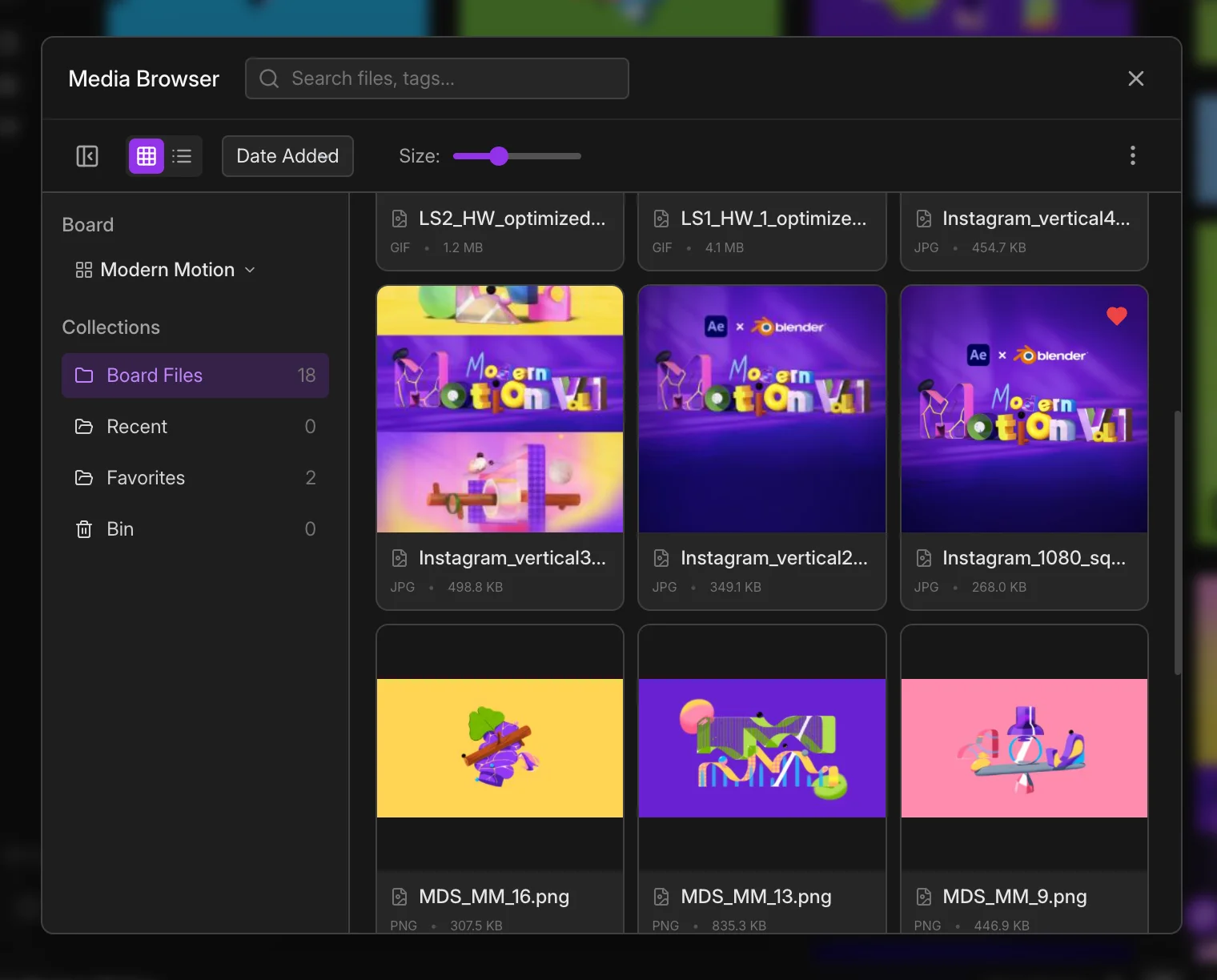
The Media Browser centralizes all media across projects. Collections, view modes, and management tools let you organize, preview, and export boards without leaving After Effects.
Collections & Views
- • Board Files — all items from currently selected board
- • Recent — everything added in this session
- • Favorites — starred files for quick access
- • Bin — deleted items you can restore
- • Grid/List toggle — switch between thumbnail cards and detailed table
- • Preview size slider — adjust thumbnail scale on the fly
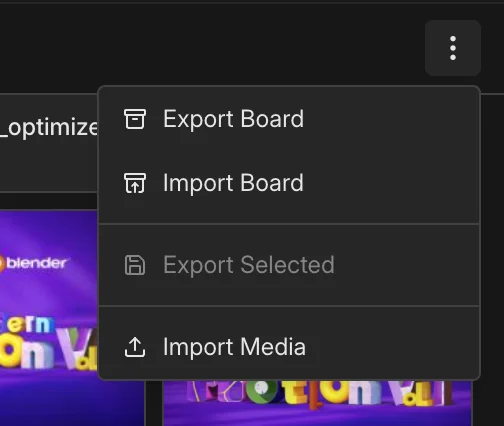
Export & Import Boards
Use the management dropdown to Export Board (saves active board + media as .refboard archive) or Import Board to restore archives. Perfect for sharing boards with collaborators or backing up work between projects. Your media lives in refsLibrary/refsMedia — FlashBoards manages paths automatically.
AI Interface Elements
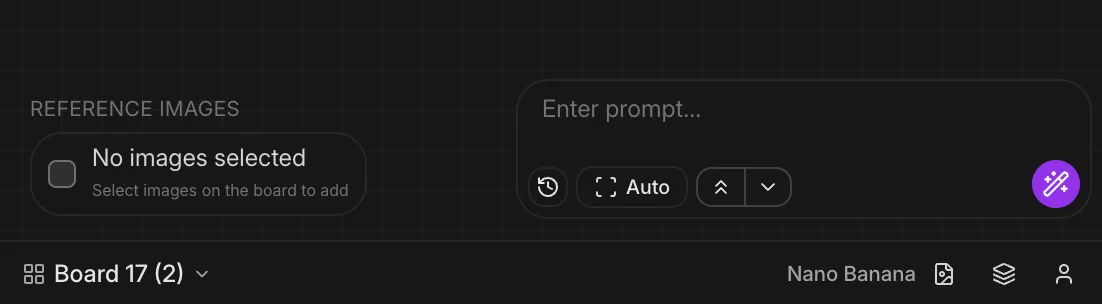
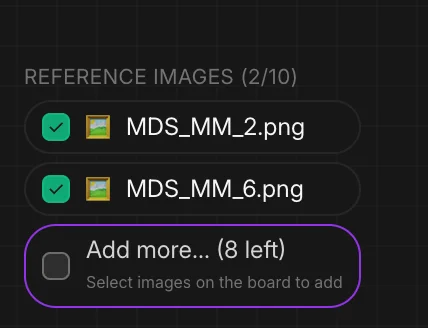
When the AI panel is enabled (Settings → General → Show AI Panel), the bottom stack displays the dual AI interface: Input Checklist on the left, Generation Panel on the right. The checklist adapts to your selected model or workflow.
AI Input Checklist
The checklist shows required and optional inputs for the active workflow. Simple models display generic “Image Reference” rows. Complex workflows show named slots like “Subject” and “Concept Background.” Learn more in the AI workflows guide.
- • Press I to assign selected item as Input
- • Press M to assign as Mask
- • Press C to clear all role assignments
- • Click checklist rows for workflows with multiple named slots
- • Numbered badges (1, 2, 3) appear on media showing assignment order
Generation Panel
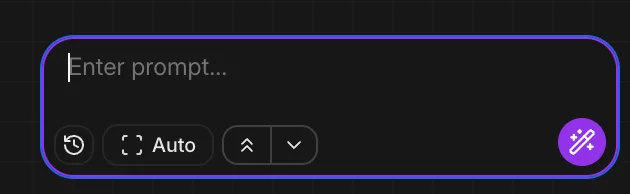
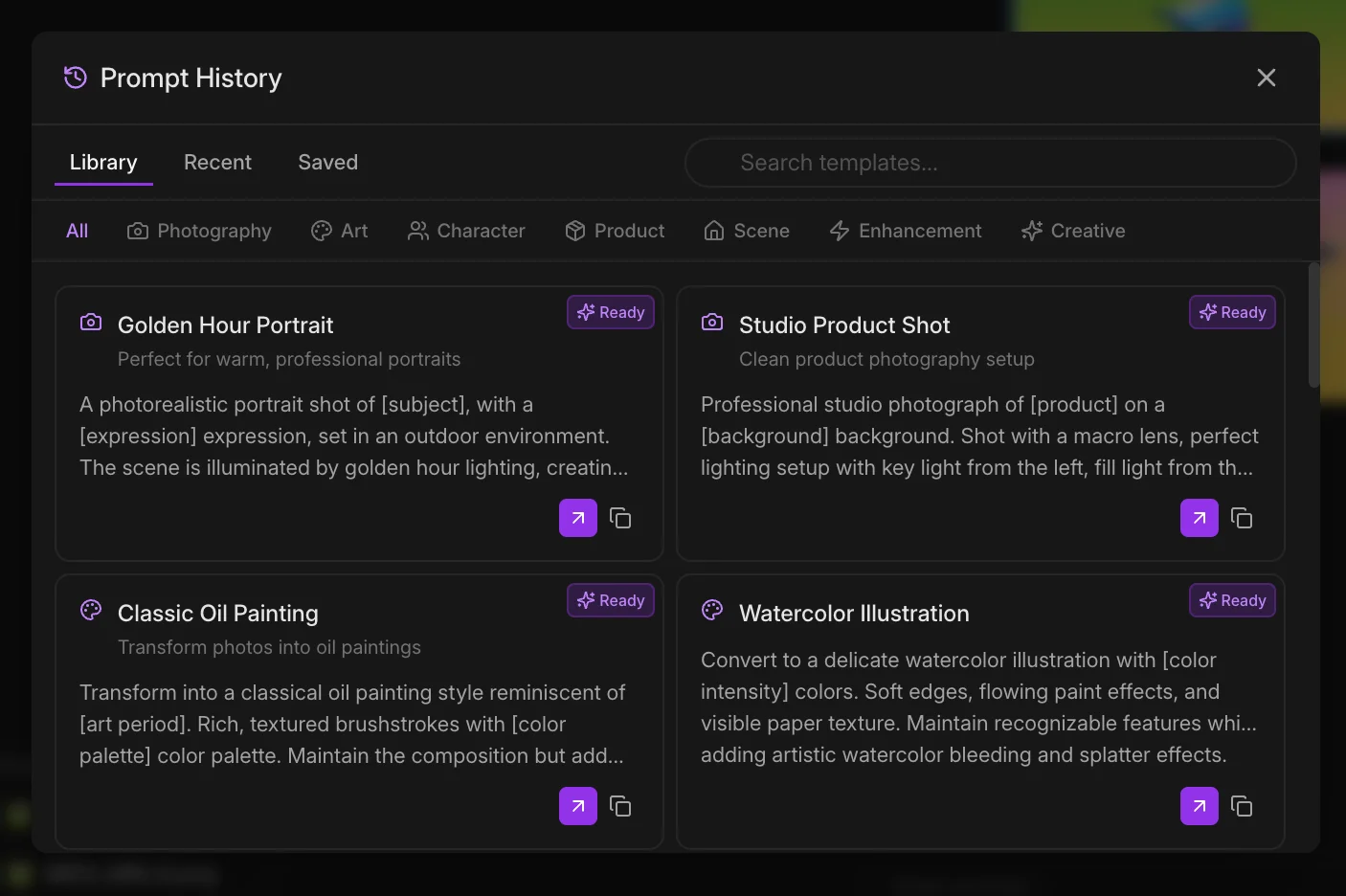
The Generation Panel (bottom right) houses the prompt field, Generate button (wand icon), and model-specific controls. Click the clock icon to open Prompt History with curated templates and your saved prompts.
- • Prompt field expands as you type
- • Prompt History — Library tab (curated templates with "Ready" tags), Recent, Saved
- • Prompt Bottom Controls — resolution, aspect ratio when model supports it
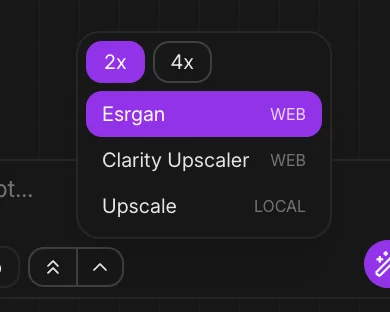
- • Upscale toggle — 2x or 4x with dropdown for model selection
- • Generation queue tracks multiple jobs with slot availability and error banners
Prompt History Modal
The clock icon opens Prompt History. The Library tab features curated templates organized by category with “Ready” tags for optimized prompts. Recent shows your past prompts, Saved contains favorites. Click any prompt to populate the input.
Upscale Options Modal
When upscale is enabled, click the 2x/4x dropdown to choose the upscale model.
Modals & Settings
FlashBoards uses focused modals for configuration and deep tasks. The Models modal, Settings, Media Browser, and Shortcuts Help all remember their active tab across sessions.
Models Modal
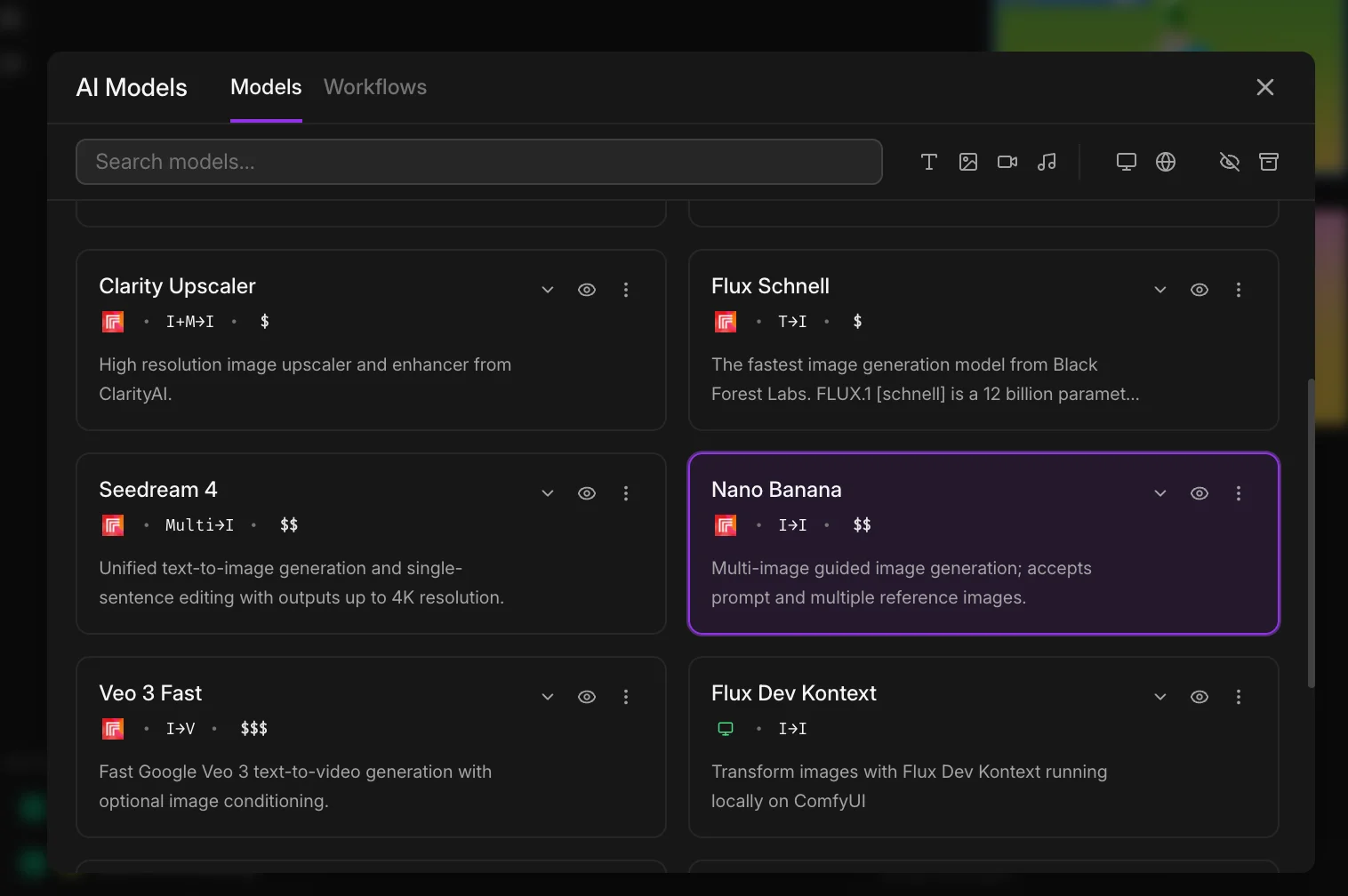
The Models button opens a modal with two tabs: Models and Workflows. Browse curated collections for Replicate, fal.ai, RunningHub, and local ComfyUI templates. Use the search bar or filter icons to narrow choices.
Settings Modal
Settings houses three tabs: General (Show Grid, Snap to Grid, media size, Show AI Panel, Use AE Selected Layers), FFmpeg & Media (installation status), and AI Generation.
Board Selector Modal
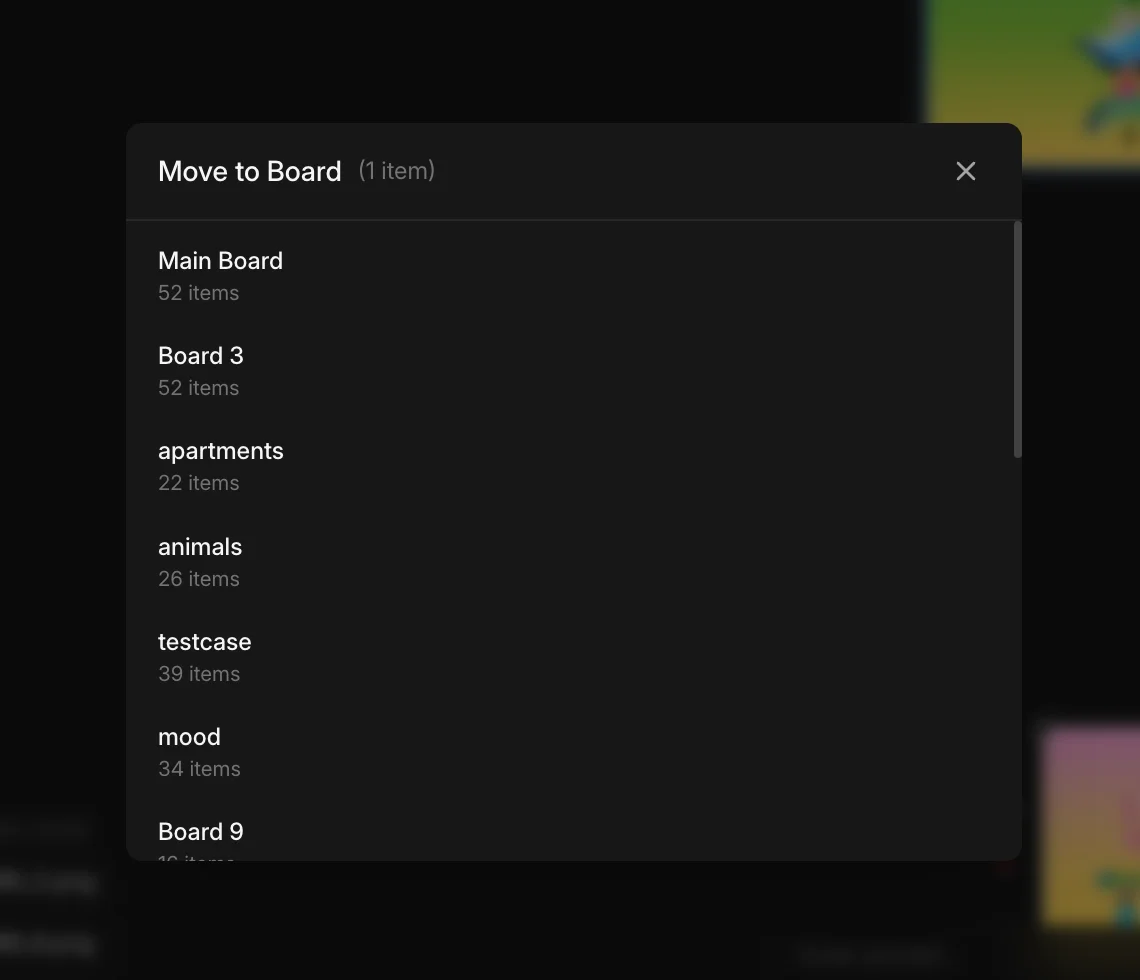
Right-click media and choose “Move to Board” to open the Board Selector. It shows all available boards. Pick a destination and items jump over instantly.
Shortcuts Help
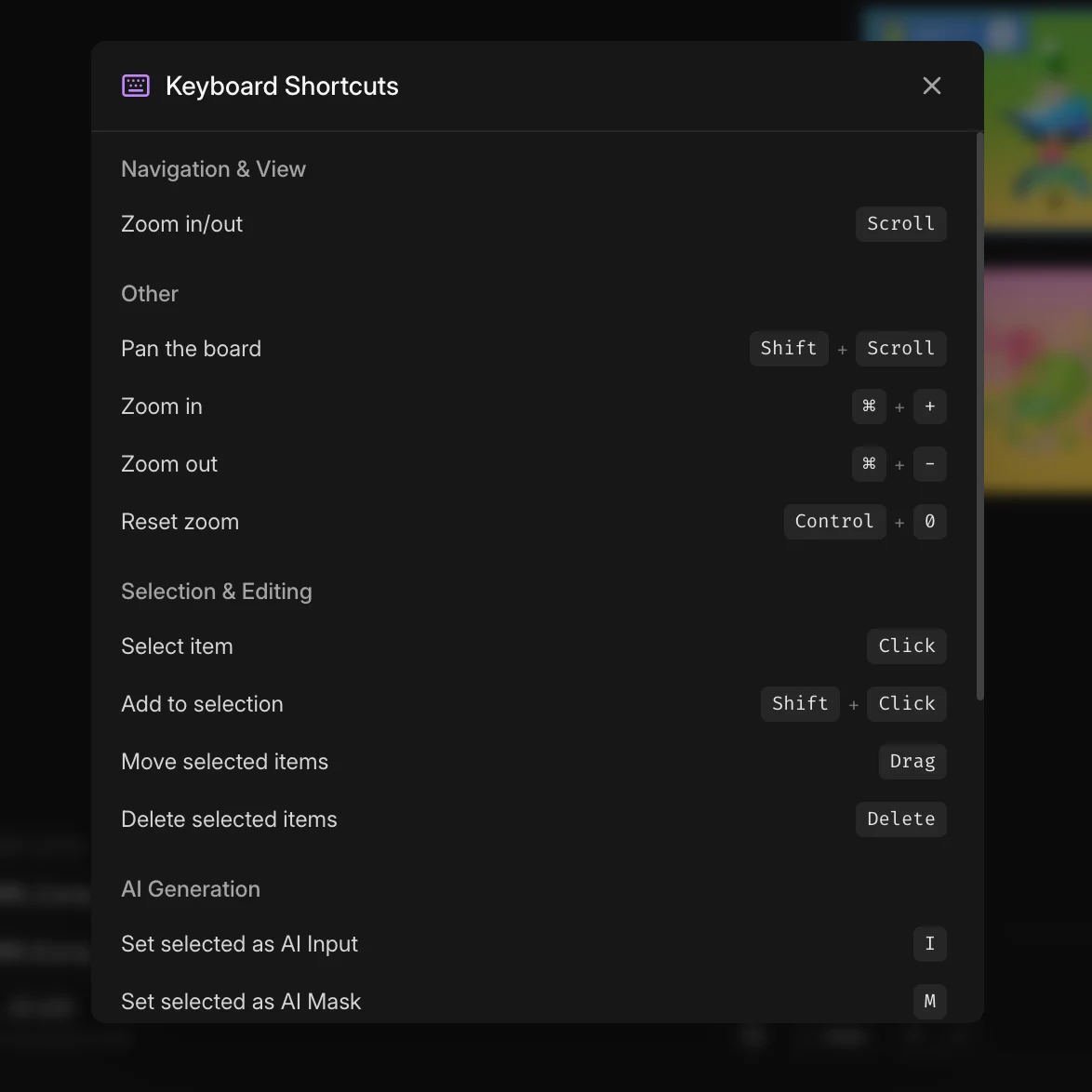
Press the help button (top left) or ? key to open the shortcuts overlay. It displays all keyboard shortcuts including pan, zoom, selection modifiers, and AI role assignments (I, M, C).
Continue to the AI workflows guide to connect providers, understand slot management, and master the generation queue.