FlashBoards AI Guide
Set up providers and run confident generations
FlashBoards blends cloud providers, RunningHub workflows, and local ComfyUI templates. This guide walks through provider setup, the input checklist, and the generation queue so you can orchestrate complex jobs without leaving After Effects.
Provider Setup
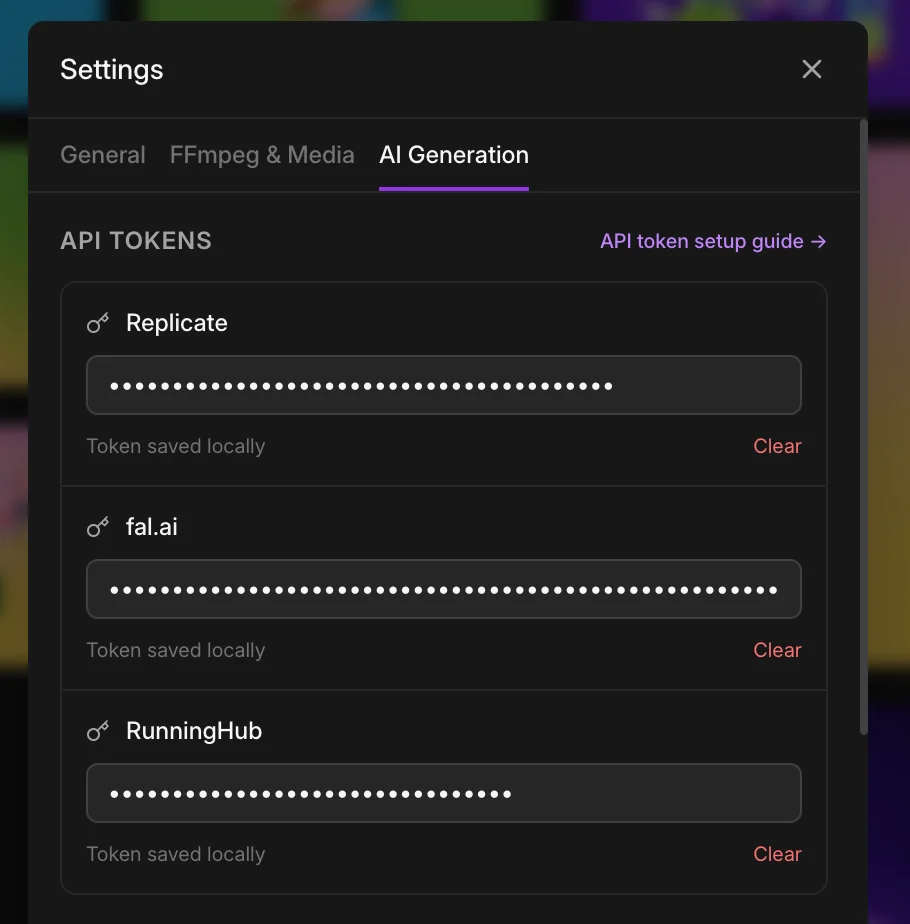
FlashBoards connects to Replicate, fal.ai, and RunningHub — cloud services that give you access to cutting-edge models without expensive hardware. The Models modal features a curated collection of models and workflows handpicked for quality and cost-effectiveness, updated with each release. Each provider token is stored locally and can be disabled at any time.
Settings → AI Generation
Open Settings → AI Generation and enter your provider tokens. See the API tokens guide for step-by-step instructions on obtaining tokens from each provider.
Models & Workflows
The Models modal features two tabs: Models and Workflows. Both display capability badges showing what each option accepts and produces, along with detailed metadata about required inputs.
- • Capability badges — T→I (text-to-image), I→V (image-to-video), I→I (image-to-image)
- • Provider badges — Replicate, fal.ai, RunningHub, ComfyUI
- • Input requirements — shows required slots and optional parameters
- • Named slots for complex workflows (e.g., "Subject", "Concept Background")
- • Search and filter by provider or capability type
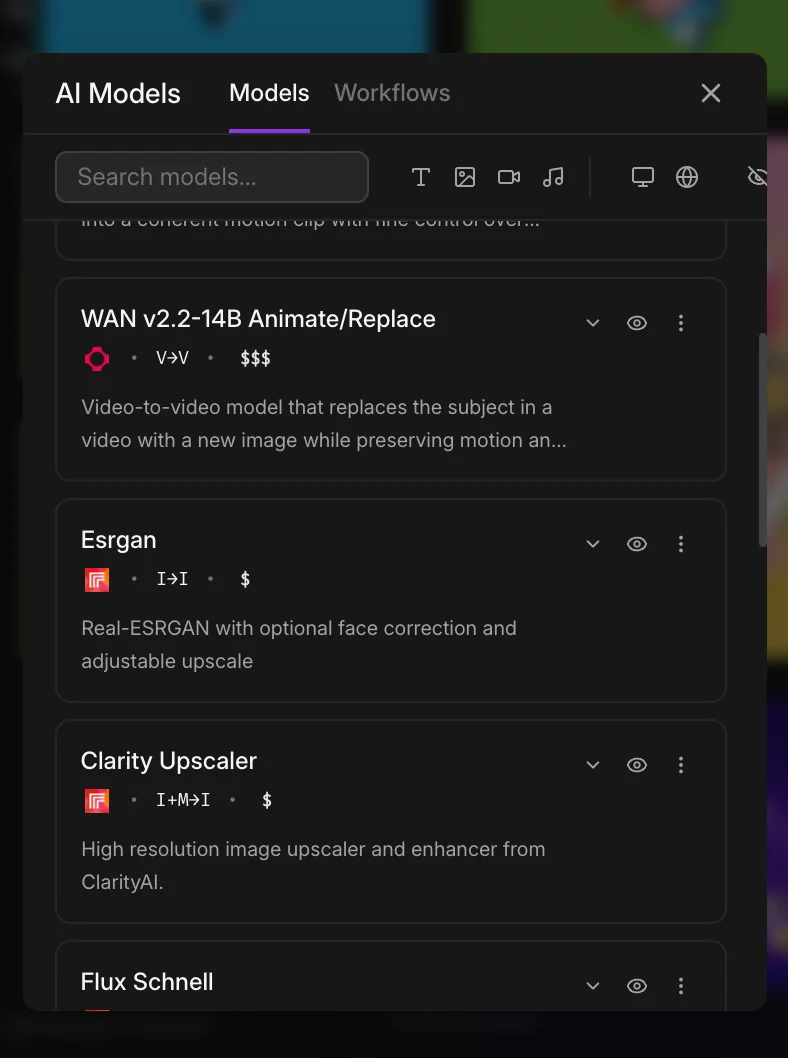
Models tab
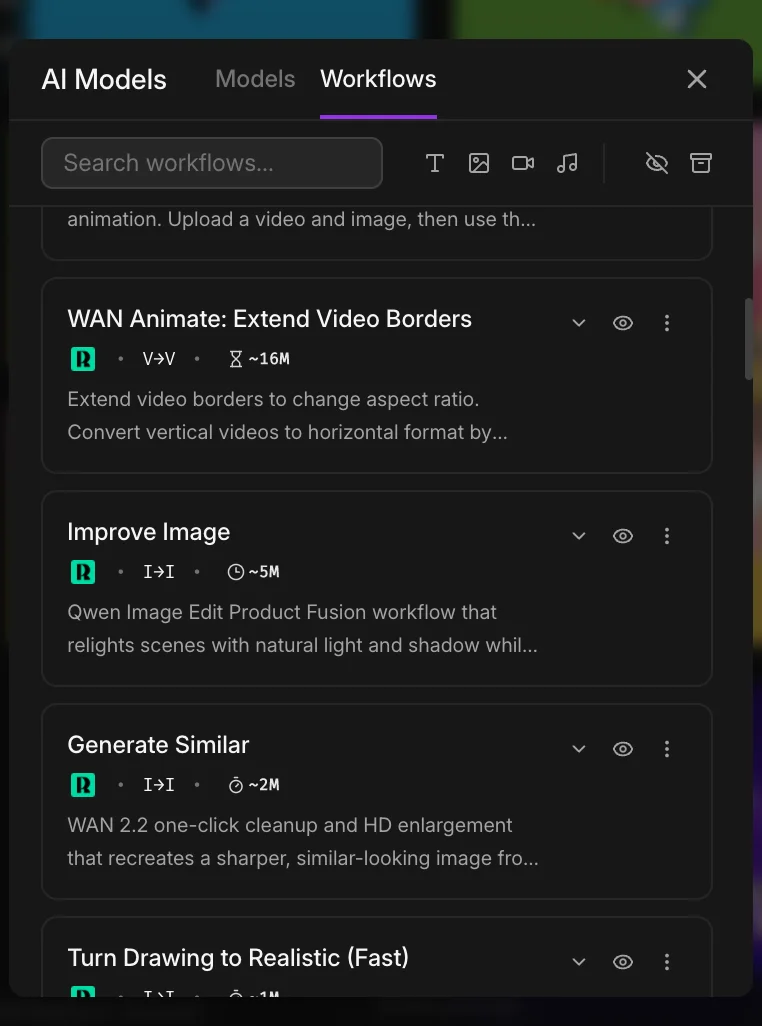
Workflows tab
AI Input Checklist
The checklist keeps every workflow explicit. Assign references, masks, videos, and AE captures to meet workflow requirements. Validation happens before any provider requests are made.
Checklist Interaction
- • Lists required and optional inputs for active workflow
- • Hover for hints and watch status bar announce when requirements met
- • Compass buttons collect AE trajectories or single-frame annotations
- • Locks appear during uploads to prevent accidental changes
- • Quick-select dropdown assigns existing board media to slots
- • Assign same asset to multiple roles when workflow allows it
- • Input validation catches missing masks, images, trajectories early
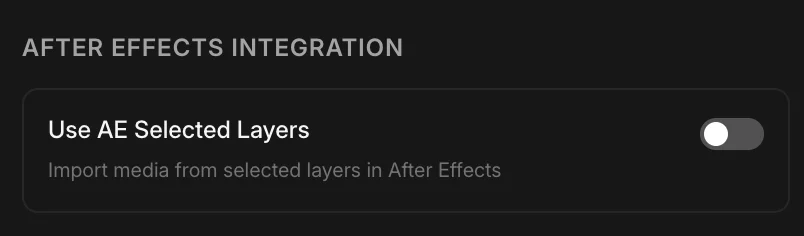
Use AE Selected Layers
Enable “Use AE Selected Layers” in Settings → General → Board to use After Effects layers as generation inputs without importing media first.
- • Automatically captures comp/text/shape layers without source files
- • Select layer in AE (without selecting board items), then generate
- • Reduces workflow friction by eliminating import step
Generation Queue & Status
Once a job starts, FlashBoards manages progress, slot availability, and follow-up actions like upscaling. The AI status bar surfaces errors, token issues, and slot limits, while the conversion bar handles downloads and transcodes.
Queue Management
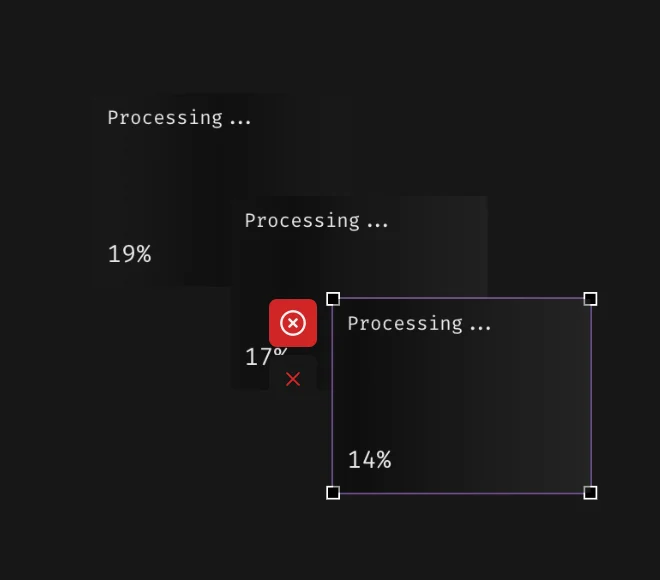
- • Tracks stage, percentage, slot availability across all providers
- • Cancel job from queue to immediately free a slot
- • Upscale passes display green 2x/4x badges with stored metadata
- • Queue respects provider constraints automatically
- • Orange error banners display token/input issues
- • Progress overlay shows status, percentage, cancel button per item
Local ComfyUI Workflows (Beta)
Connect to local ComfyUI server for offline workflows. FlashBoards attempts connection on port 8000 followed by 8188. Launch the desktop app or standalone server before starting.
- • Port auto-detection (8000, then 8188)
- • MacOS MPS fallback for Apple Silicon
- • Desktop app integration (beta)
- • Built-in workflow templates (Flux Schnell, img2img, inpainting, upscale)
- • Tap "Reconnect" in Models modal if offline
See the ComfyUI setup guide for detailed configuration instructions, including connection setup, macOS MPS fallback, and Gatekeeper troubleshooting.
Continue to the API tokens setup guide for step-by-step instructions on configuring each provider, or explore the ComfyUI guide for local workflow setup.