Physics
Widget
Apply realistic physics simulation to layers with Matter.js.
Overview
Physics brings realistic physical simulation to After Effects using the Matter.js engine. Select layers, configure physics properties, and watch them interact with gravity, collisions, and forces.
Unlike complex tools like Newton, Physics focuses on one-click simplicity - select layers, adjust a few sliders, and apply. The result is native AE keyframes that you can edit and refine.
Widget UI
Toolbar
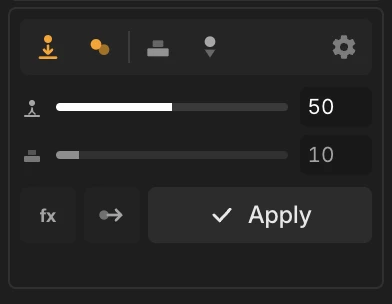
Sliders
Actions
Forces
Force layers apply continuous forces to dynamic bodies during simulation. Forces can be animated and parented to other layers.
Wind
Constant directional force. Rotate the layer to change wind direction. Use for leaves blowing, flags, or particle effects.
Explosion
Radial outward force from layer position. Bodies are pushed away from the force center.
Attraction
Radial inward force toward layer position. Bodies are pulled toward the force center. Use for magnet or black hole effects.
Turbulence
Random varying force for organic, chaotic motion. Layer rotation acts as random seed.
Effect Controls
- • Strength - (0-100) - Force intensity. Higher = stronger push/pull
- • Radius - Effective range in pixels. Bodies outside this range are unaffected
- • Falloff - How force diminishes with distance: None (constant), Linear, or Quadratic
Animated Forces
Force layers can be animated or parented. Position, rotation, strength, and radius are all sampled per-frame. Use keyframes or expressions on any force property for dynamic effects like pulsing explosions, expanding attraction fields, or moving wind sources.
Settings
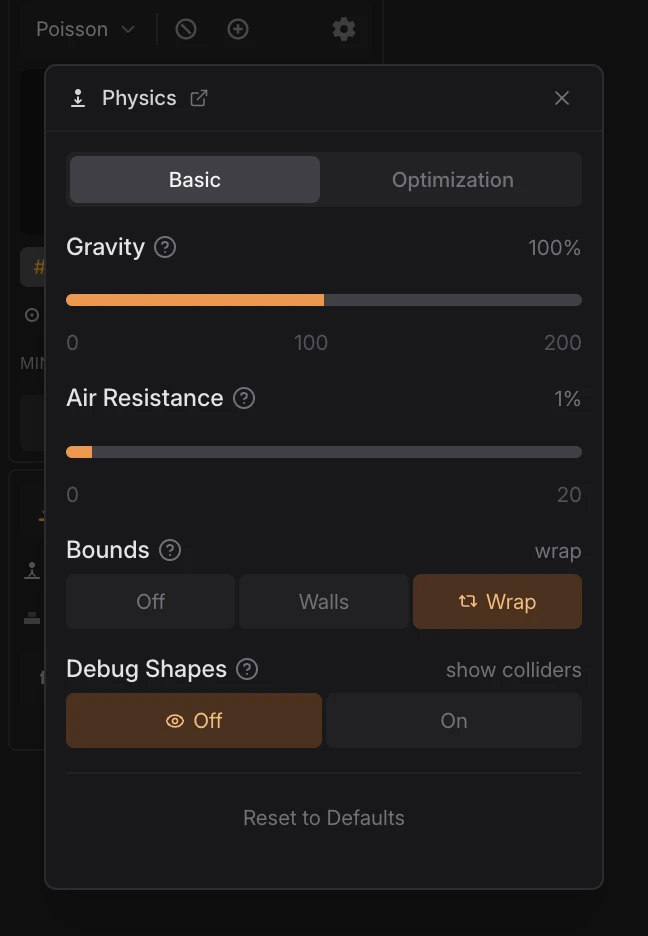
The Settings modal provides advanced control over physics simulation parameters.
Basic Tab
- • Gravity Strength - Force of gravity (0-200%)
- • Air Friction - Drag applied to moving objects
Off
No boundaries - objects can leave the comp
Walls
Invisible walls at composition edges
Wrap
Objects wrap to opposite edge when leaving comp (like Asteroids)
- • Debug Shapes - Show collision boundaries as shape overlays
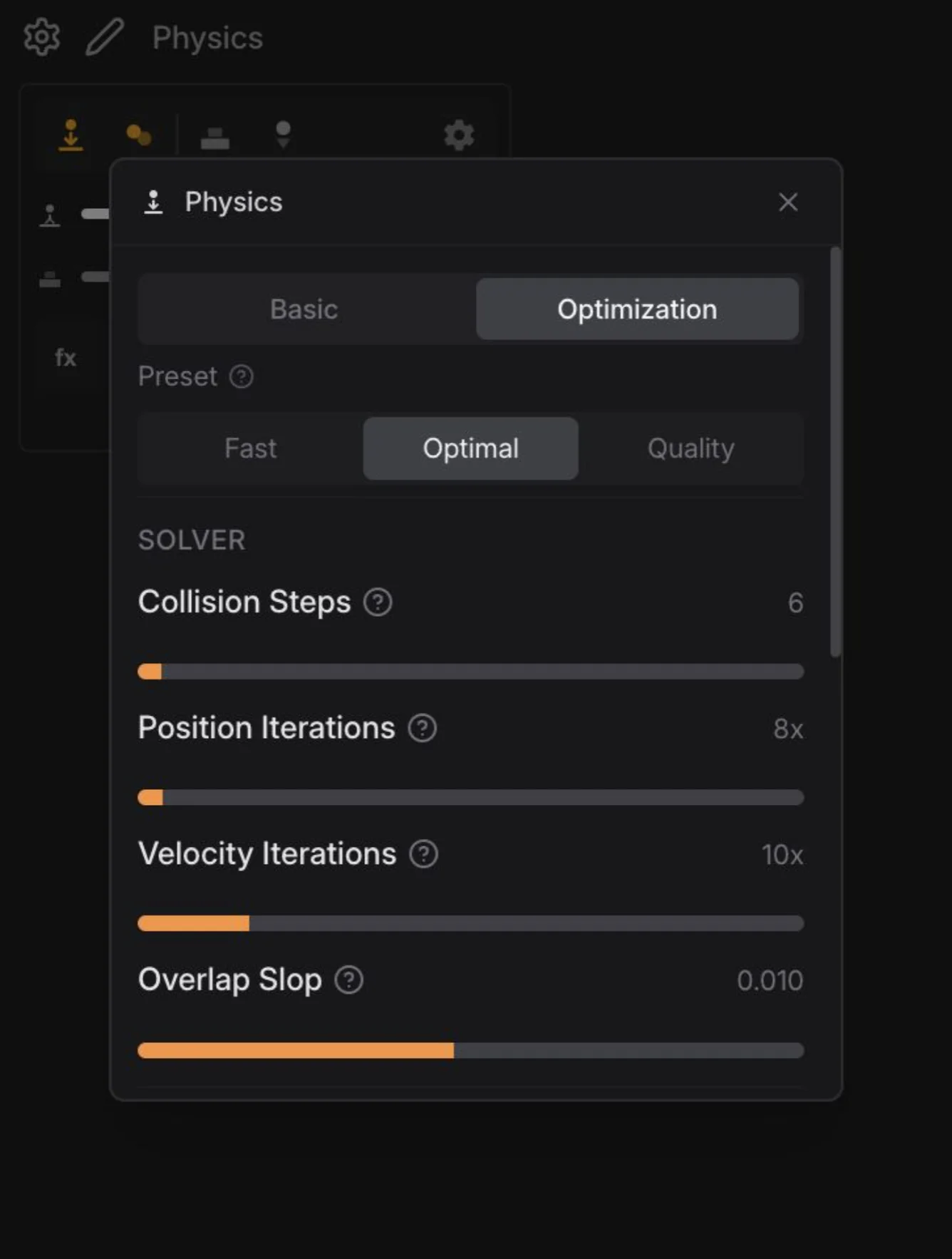
Optimization Tab
Fine-tune physics solver parameters for different quality/performance tradeoffs.
- • Presets - Fast, Optimal, or Quality presets
- • Solver Settings - Collision steps, position/velocity iterations
- • Shape Sampling - Control how complex shapes are approximated
- • Body Sleep - Allow stable bodies to sleep for performance
Per-Layer Properties
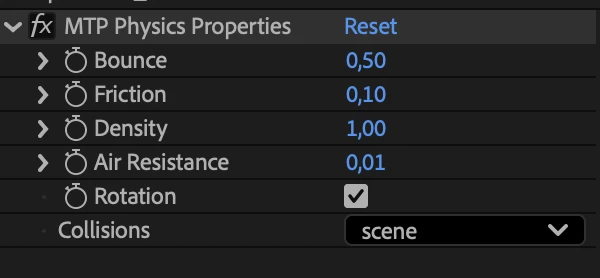
By default, all dynamic layers use the global Bounce and Friction values from the widget sliders. For more control, you can override these values per layer using the MTP Physics Properties effect.
How to Add
Select the layers you want to customize, then click the FX button in the widget toolbar. This applies the "MTP Physics Properties" pseudo effect to each selected layer.
Effect Properties
- • Bounce (0-1) - How much energy is preserved on collision. 0 = no bounce, 1 = full bounce
- • Friction (0-1) - Surface resistance. 0 = frictionless ice, 1 = sticky rubber
- • Density (0.001-10) - Mass relative to size. Higher = heavier objects that push lighter ones. Now actively affects physics simulation.
- • Air Resistance (0-0.1) - Drag that slows objects over time. Higher = more air drag
- • Rotation - Enable/disable rotation during simulation. ON = physics controls rotation, OFF = layer stays at initial rotation
- • Collisions - Per-layer collision control: Scene (use global setting), On (always collide), Off (pass through other objects)
Workflow
Getting Started
- 1. Select layers you want to simulate (or select none to use all layers in comp)
- 2. Mark dynamic layers (affected by physics) vs static (boundaries/ground)
- 3. Adjust global physics parameters (gravity, bounce, friction)
- 4. Click Apply to run simulation and generate keyframes
Tip: If no layers are selected, Physics automatically uses all layers in the composition.
Layer States
Dynamic - Fully simulated, affected by gravity and collisions. Use for falling objects, bouncing balls, etc.
Static - Immovable boundaries. Use for floors, walls, platforms. Layers named "ground", "wall", "floor", or "platform" are automatically static.
Kinematic - Static layers with keyframes automatically become kinematic - they follow their animation and push dynamic objects. Perfect for moving platforms, swinging pendulums, or any animated boundary.
Supported Layer Types
- • Shape layers (rectangles, ellipses, custom paths)
- • Solid layers
- • Text layers (uses text bounds)
- • Precomps (uses layer bounds)
- • Footage with masks (uses mask shape for collision)
Extra Functionality
Initial velocity - Set position keyframes before the current time to give layers an initial direction and speed. The physics engine will use this motion as the starting velocity.
Compound Bodies - Parent layers in After Effects to create compound rigid bodies. When you parent multiple layers together and select them for simulation, they move as a single connected object. The parent layer becomes the main body, and child layers follow its motion while maintaining their relative positions.
Sleep Optimization
Bodies that come to rest are automatically detected. Redundant keyframes are skipped for sleeping bodies, significantly reducing keyframe count for settled objects.
3D Layer Support
Works with 3D layers using 2D physics.
Parametric Mesh Layers
Supports After Effects 2026 parametric mesh layers: Sphere, Cube, Plane, Torus, Cone, and Cylinder. Mesh type is auto-detected even if renamed.
Note: 3D layer collisions use 2D bounding boxes - true 3D collision detection is not supported. Rotation keyframes are applied via zRotation property.