Distribution
Widget
Generate point patterns and fill them with duplicated layers.
Overview
Distribution generates point patterns and fills them with duplicates of your selected layers. Choose from mathematical patterns like Fibonacci spirals, organic distributions like Poisson disk sampling, or precise grids and radial layouts.
Select your layers, pick a distribution type, adjust count and spacing, then click Apply. The widget duplicates your selected layers to fill the pattern, supporting both 2D shapes and AE 2026 parametric 3D meshes.
Widget UI
Toolbar
Preview
Real-time preview showing point distribution with aspect-preserved letterbox
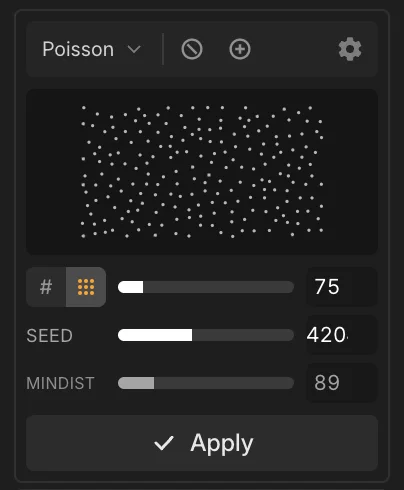
Controls
Actions
Distribution Types
Distribution offers multiple pattern algorithms organized by category. Select a type from the left panel to see a preview.
Uniform Patterns
Regular rows × columns with configurable spacing
Honeycomb/offset grid pattern for organic fills
Concentric circles from center point
Archimedean or logarithmic spiral distribution
Mathematical Patterns
Phi-based spiral placement following golden ratio (137.5° angle)
Cell-based distribution with relaxed centroids
Quasi-random low-discrepancy sequence for even coverage
2D low-discrepancy sequence, similar to Halton but faster
Random Patterns
Random placement with guaranteed minimum spacing
Perceptually uniform randomness
Grid with random offset per cell for controlled variation
Grouped distribution with density control
Organic Patterns
Noise-based flowing distribution
Distribute along bezier/mask path from guide layer
Settings
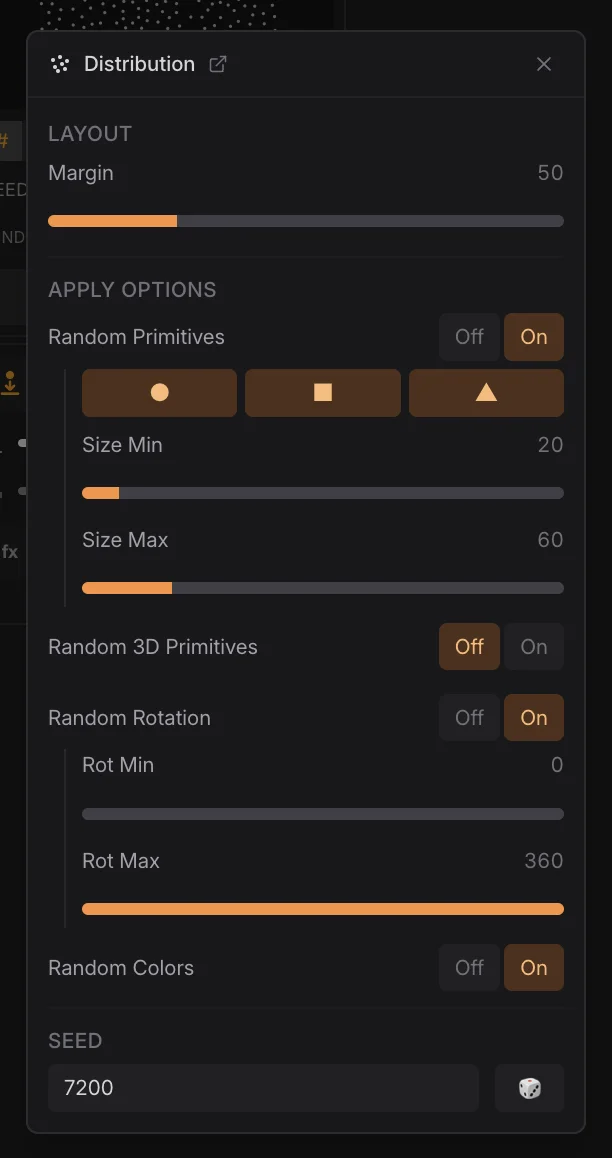
The Settings modal configures layout, random generation options, and seed value.
Layout
Apply Options
Seed
Workflow
Getting Started
- 1. Select layers you want to distribute (these will be duplicated)
- 2. Choose a distribution type from the left panel
- 3. Adjust count/spacing using the sliders
- 4. Click Apply to generate the distribution
Supported Layer Types
- • Shape layers (any shape or path)
- • Solid layers
- • Text layers
- • Precomps
- • Footage layers
- • Parametric mesh layers (AE 2026: Cube, Sphere, Plane, Torus, Cone, Cylinder)
Preview Mode
The preview shows your distribution in real-time with aspect-preserved letterbox. Points are displayed as dots, with avoid zones shown in red and include zones in green.
Path Distribution Mode
When using Path Following type, the first path from a guide layer is extracted and points are distributed evenly along it. Great for text on path, scattered elements along curves, or motion path layouts.
Avoid & Include Zones
Control where points can and cannot be placed using zone markers on layers.
Avoid Zones
Mark layers as avoid zones to prevent point placement inside them. Use for obstacles, text areas, or any region that should stay empty.
How to Add
Select layers, then click the Avoid Zone button. A marker is added to the layer name.
Include Zones
Mark layers as include zones to restrict point generation to only inside these areas. Useful for custom-shaped boundaries.
How to Add
Select layers, then click the Include Zone button. Points will only generate within these boundaries.
Supported Shapes
Zones work with shapes, masks, and parametric shapes (Rectangle, Ellipse). Complex paths are sampled as polygons for accurate collision detection.
Marker Detection
Zones are detected via layer name markers: 'avoid' or 'void' for avoid zones, 'include' for include zones.