Crazy Shapes
License Activation Guide
Follow these steps to install and activate Crazy Shapes on your machine.
Script overview
Crazy Shapes
Turn any shape illustration into a flexible rig with procedural path effects, instant secondary animation, and export-ready controls.
Detailed walkthrough in progress
We are preparing script-specific screenshots and callouts. The steps below match the Motion Design School licensing flow so you can activate right away.
Need tailored guidance? Contact support and we will send personalised instructions.
Step 1: Get Your Activation Key
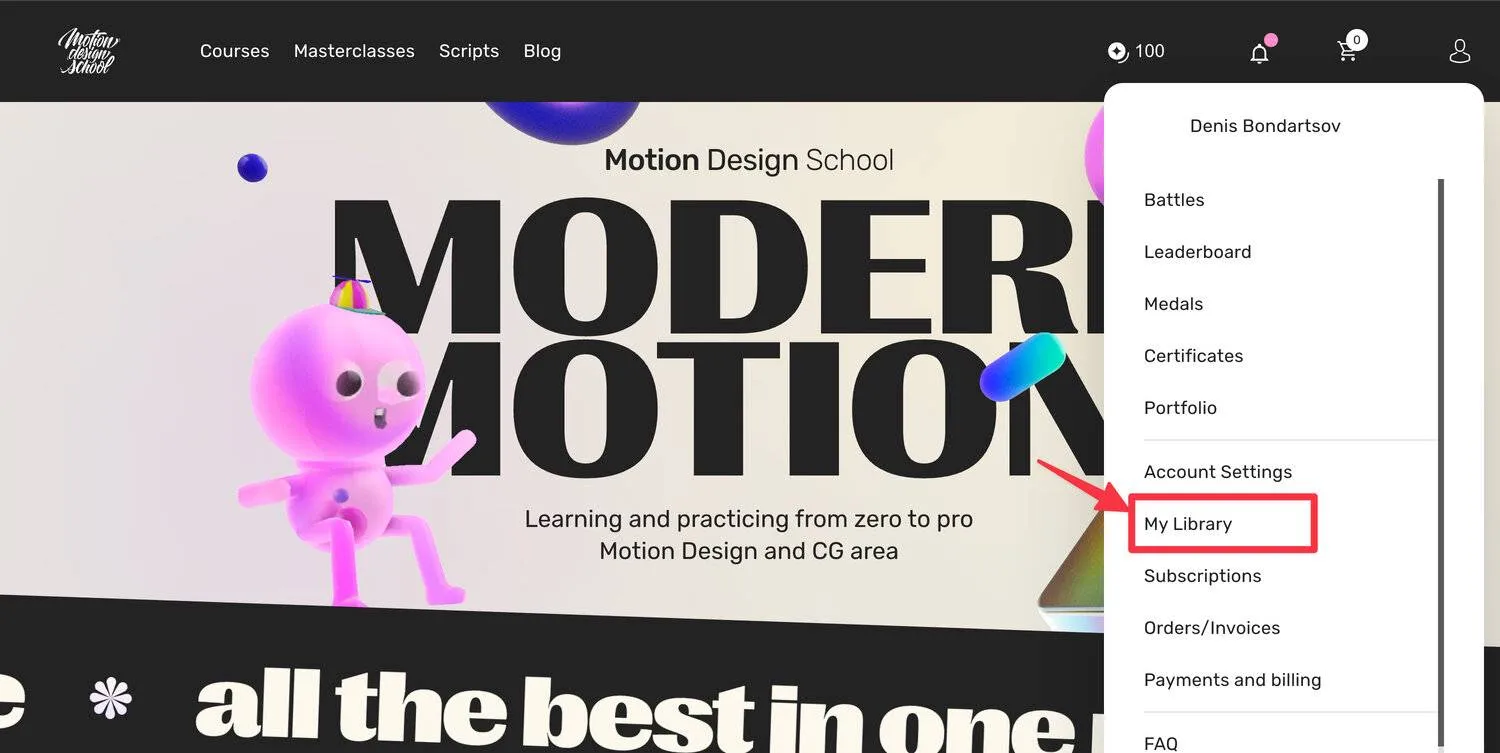
After purchasing, get your activation key from your Motion Design School account.
Open My ToolsLog into your account at motiondesign.school.
Go to My Library → "My Tools"
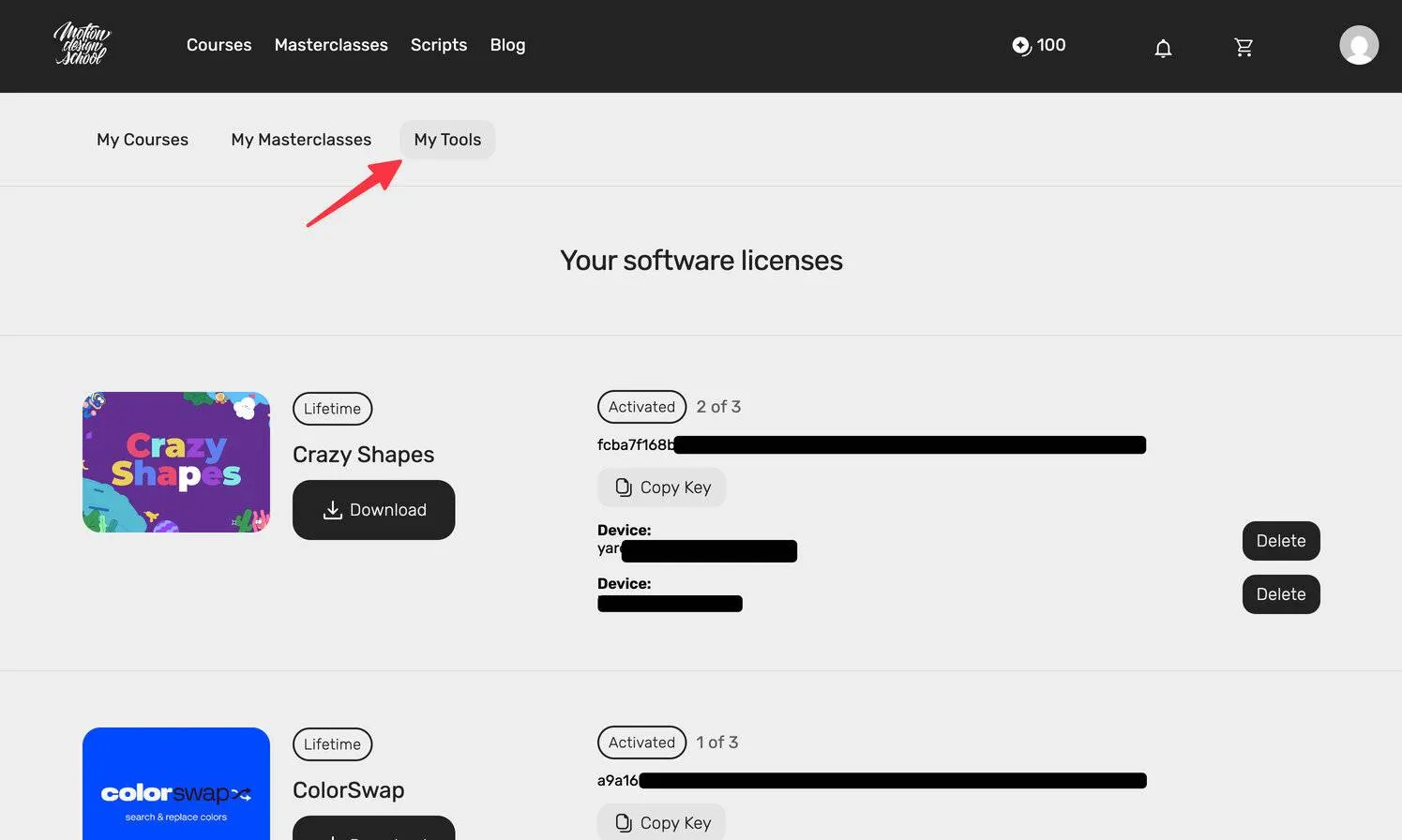
Find your purchased script in My Tools and open its menu to view license details.
Copy the activation key shown next to the script.
Keep your license key secure and do not share it with others.
Step 2: Install Crazy Shapes
Install the extension
Download the latest build from your Motion Design School library, then follow these installation steps.
- 1. Download the extension package (.zxp) from your account
- 2. Install using Creative Cloud, Install AE
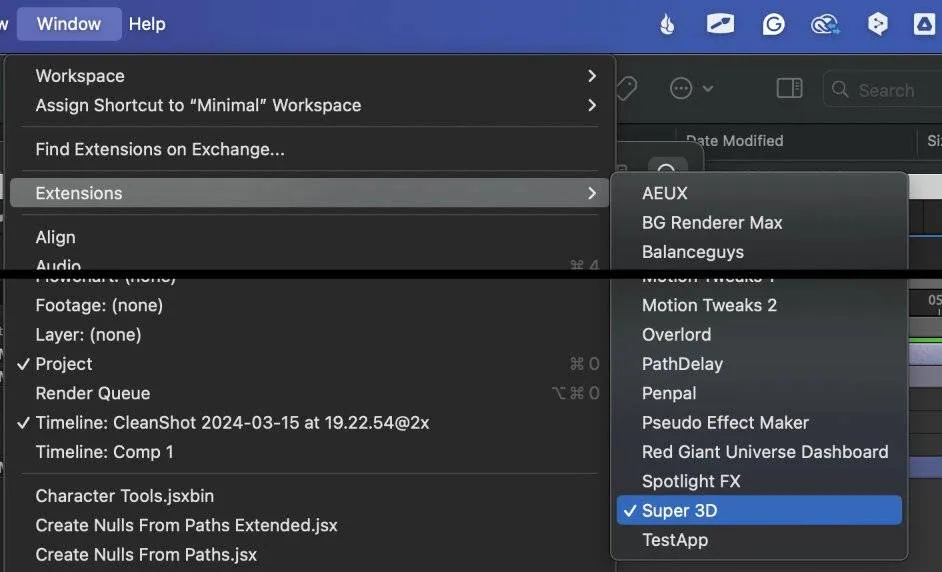
- 3. Open it via Window → Extensions → Crazy Shapes
Step 3: Activate Your License
Activate with your key
Launch Crazy Shapes and open the license dialog from the overlay or panel menu to start activation.
- 1. Open Window → Extensions → Crazy Shapes
- 2. Look for an Activate, License, or Sign In button
- 3. Paste your license key into the field
- 4. Confirm and wait for the success message
Keep After Effects online until you see the confirmation banner to ensure the server validates your key.
If the activation window does not appear automatically, reopen the panel and choose the license option from the menu before entering your key.
Enable scripting permissions
After Effects needs permission to store your activation token locally. Make sure scripting access is enabled.
After Effects → Preferences → Scripting & Expressions → Enable "Allow Scripts to Write Files and Access Network"Troubleshooting
Common issues
- • Panel missing: confirm the files are in the correct After Effects folder
- • License rejected: double-check for extra spaces when pasting the key
- • Network error: allow After Effects and CEP processes through firewalls or VPNs
- • Exceeded activations: deactivate old machines in your user cabinet
Temporary network blocks or VPNs are the most common reason the activation window stays blank; try disabling them while activating.
Quick checks
- • Restart After Effects after each installation or activation attempt
- • Run After Effects as administrator on Windows for the first launch
- • Install the latest supported version of After Effects for your tool
- • Clear cached activations by reopening the panel after a restart
Need a reset?
Remove unused devices from your account or email support for a manual reset.
Need help with Crazy Shapes?
Our licensing team can walk you through activation, reset old devices, or double-check your purchase status.